Fast Open and Save in Office 2013
A minor annoyance I have in Office 2013 is the file Open and Save experience. You have to go through the following steps to open in a file in a directory on your system:
- File –> Open (or Ctrl+O)
- Click on Computer
- Click on one of the folders in the list
- Navigate to the file
Others have complained about this too. In the Office 2013 Preview there was no real workaround other than the one described in this article.
Fortunately you can get around this in the RTM version. In the Options menu, click on the Save tab and check the “Don’t show the Backstage when opening or saving files” checkbox:
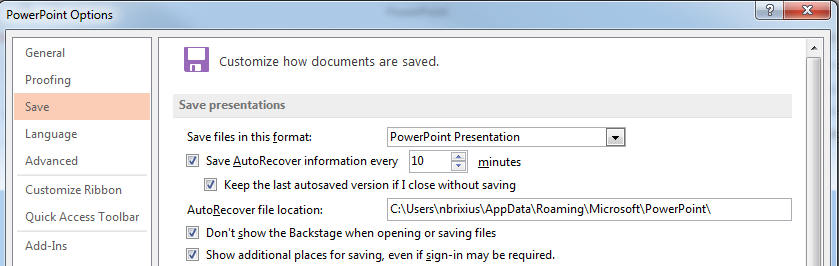
Now Ctrl+O and Ctrl+S will take you straight to a file browse dialog. Much better!