Adding Error Bars to Charts in Excel 2013
Excel 2013 makes it easier than ever to create error bars. Hooray! This post shows you how to add them to your charts. The spreadsheet with the chart and backing formulas can be downloaded here . If you are looking for a more detailed reference, I recommend Excel Charts by John Walkenbach. I also recommend this excellent post by Peltier Tech.
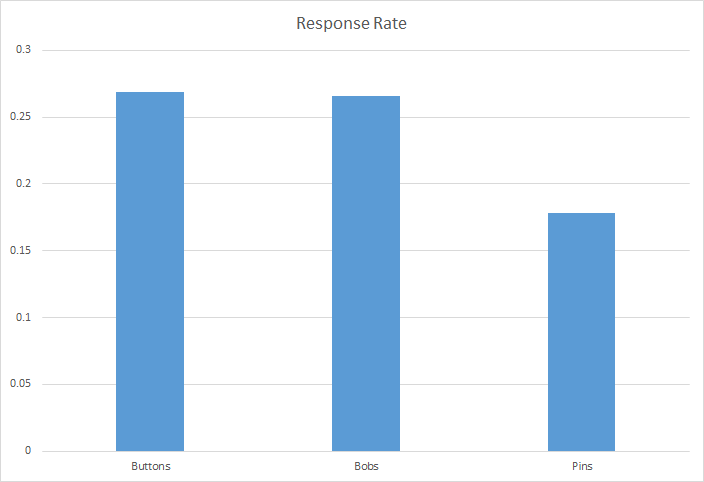
Let’s get started. I created a simple bar chart from a table representing promotional response to advertising on three products in twenty major US markets. (Actually, it’s just a 20x3 table with =RAND()*RAND().) Here’s the chart:
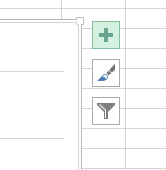
When you create a chart in Excel 2013, three buttons appear just above the upper-right hand corner. Click on the “plus” button to add new chart elements – check “Error Bars” and error bars will magically appear on your chart.
A task pane opens on the right side of the screen. This pane lets you customize the range and formatting of the error bars. Click on one of the error bars, and then on the “bars” icon in the task pane to see range options:
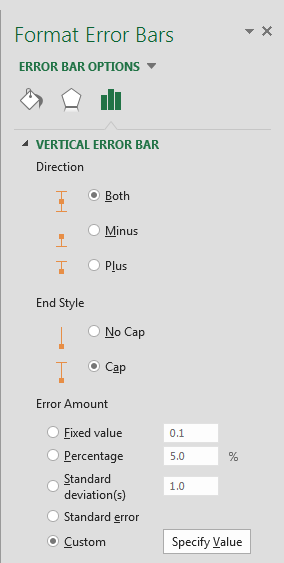
Usually I want to supply my own values for the top and bottom based on formulas. Suppose I want to display 95% confidence intervals using the series data.
First I need to compute standard deviations for each series using STDEV.P:
=STDEV.P(A2:A21)
Then compute the 95% confidence value using CONFIDENCE.NORM:
=CONFIDENCE.NORM(0.05,F3,COUNT(A2:A21))
Row 4 has the 95% confidence values for each of the three series. I’d like to base my error bars on these values. Click on Custom. Clicking on the “Specify Value” button brings up a dialog box:
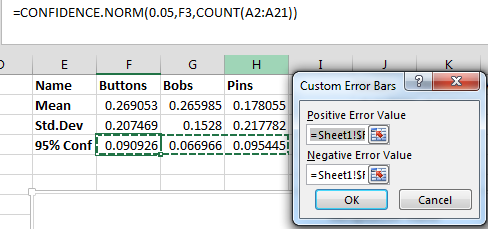
The "Positive Error Value” range selector lets me enter in a constant value or more interestingly, cell range that defines the top of the error bars, as an offset from the bar. Similarly, “Negative Error Value” defines the bottom of the error bars. Again, these are offsets, not absolute values. Therefore I want to use F4:H4 for both. Select those ranges, click OK and voila: a nice looking chart with error bars.
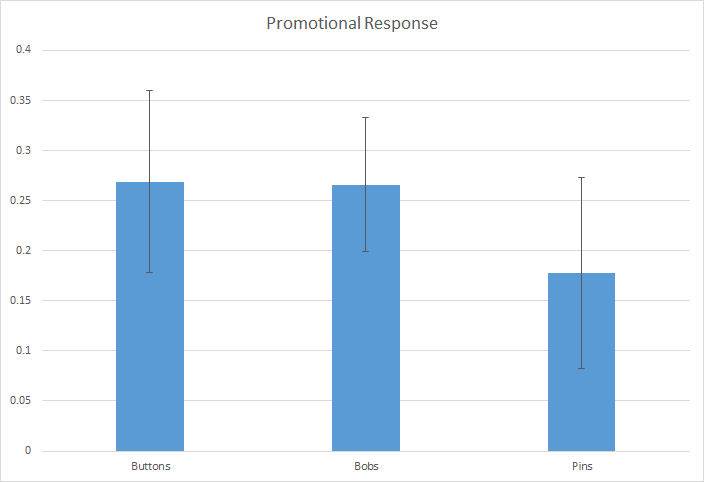
If I change the values in columns F-H, the error bars change too. The other Error Amount choices in the Error Bar task pane are simpler. For example, Standard Deviation means that the top and bottom will be one standard deviation from the mean across all series:
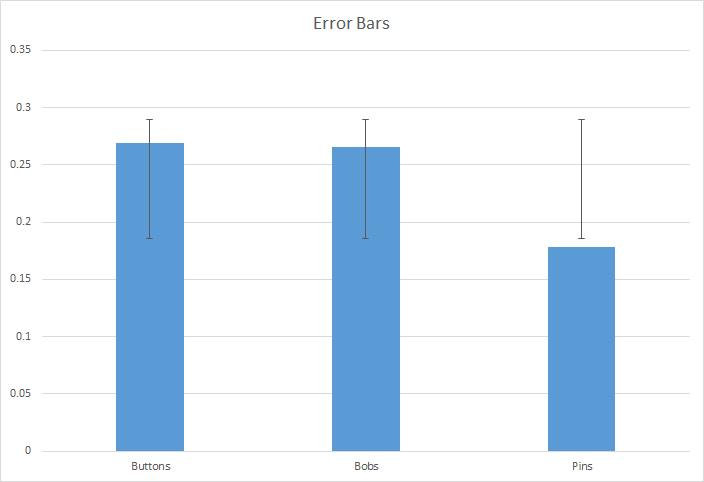
“Fixed value” and “Percentage” are obvious. “Standard Error” computes the top and bottom using the standard error of the corresponding series. The documentation describes the formulas used by Excel.
This feature was not widely advertised in the Excel 2013 release, but it’s really useful. Charts just look better, too. All in all, some nice improvements!